User Guide
Expense Tracker — Daily business expenses & cash reconciliation | Version 1.1.2 | Last updated: 31 October 2026
By Simhadri Systems | simhadrisystems@gmail.com
1. Getting started
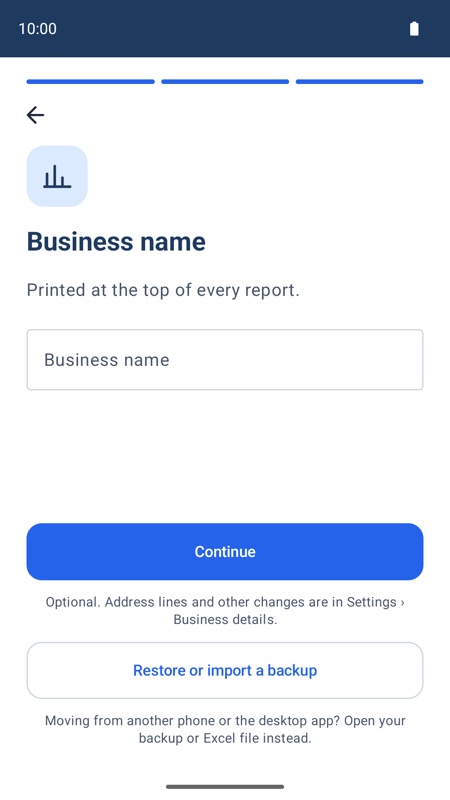
The first time you open the app it walks you through a few short steps:
- Welcome — what the app does.
- Your data stays on this phone — read and tap I understand and accept. The app works offline, has no account, and you are responsible for your backups.
- Business name — printed on your reports. Optional; you can change it later in Settings. Moving from another phone or the desktop app? Tap Restore or import a backup here instead and open your backup or Excel file.
- Sample data — the app opens a sample branch with made-up entries for yesterday and today. Look around Home, Entry and Reports, then tap the Sample data notice and choose:
- Make it my branch — give it your branch name. The sample entries are deleted; the categories stay.
- Create a new branch — a new branch with the same categories; the sample branch is deleted.
- Restore a backup — if you already have a backup file (from this app or the desktop app). You see a preview before anything is imported.
The bottom bar has four tabs: Home, Entry, Reports and Settings. If you have more than one branch, switch branches from the name at the top left.
2. Free trial and plans
Everything is open for 60 days from the first time you open the app. No payment details are needed. Settings → Plan shows how many days are left; Home reminds you 7 days and 1 day before the end.
After the trial (free)
- One branch stays free for daily entry, for as long as you like. When the trial ends the app asks which branch; with only one branch it is chosen for you. The choice is fixed.
- Other branches and reports stay readable. Nothing is deleted or hidden.
- Backups stay free: you can always back up and restore your data.
- Report sharing (PDF, Excel, print), Export to Excel, category changes and most settings need a plan.
Plans
- A plan opens one branch for one year, with every feature. The price is shown in your local currency on the Plan page and on the Google Play payment screen before you pay. Up to 5 branches.
- Settings → Plan: tick the branches to buy and pay through Google Play. Buying several branches shows one Play payment screen per branch, one after another.
- Pre-paid, no auto-debit. Nothing renews by itself and there is nothing to cancel. Each paid branch shows its own Paid until date; Extend adds a year to that date. From 30 days before the end, Home shows a reminder with Extend.
- Move to another branch: a paid branch can be moved 90 days after it was given. If you delete a paid branch, its paid year can be given to another branch at once.
- While any plan is active, only the paid branches are open for entry; other branches stay readable.
- When a plan ends, the free rules above apply again. Export to Excel stays open for 15 days after the last plan ends.
- New phone or reinstall? Install the app with the same Google account and tap Already bought? Check purchases on the Plan page. Then give each paid place to its branch with Use it here.
Payments are handled by Google Play; the app never sees your card, UPI or bank details. Purchases are listed in the Play Store app → Payments & subscriptions. For refunds see Google Play's refund policy or write to us.
3. Daily routine
Pick the day
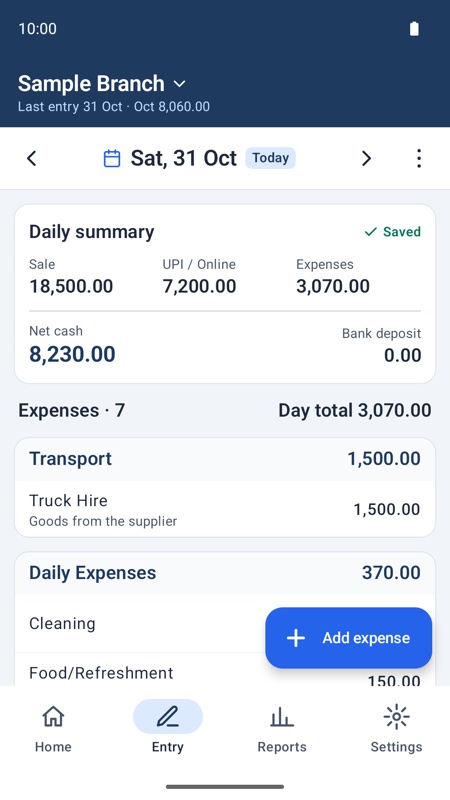
Open Entry. Swipe left or right anywhere on the day, or use the ◄ ► arrows, to change the day, or tap the date to pick from a calendar. The ⋮ menu has Go to today.
Daily summary
Tap the Daily summary card and enter the day's Sale, UPI / Online and Bank deposit. Use Notes for deposit details, shortages or remarks. The app works out:
- Net cash = Sale − UPI − Expenses
Once saved, the card shows a green Saved tick. Tap it again to change the figures.
Add expenses
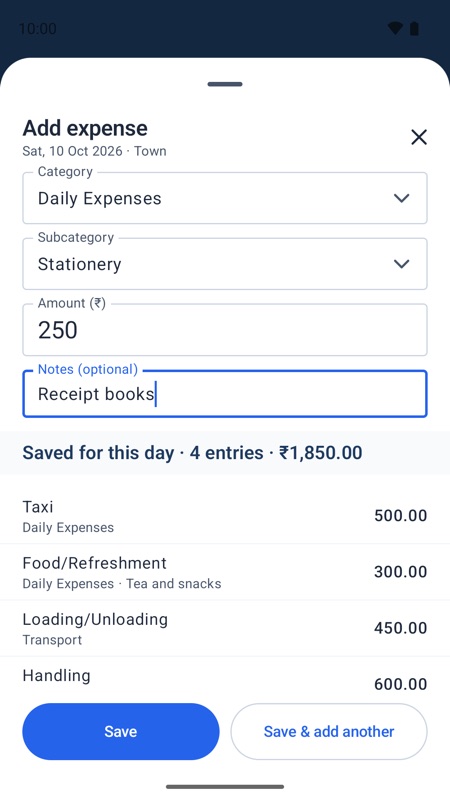
Tap Add expense (you can drag this button out of the way). Choose the Category and Subcategory — recently used subcategories come first — then type the Amount and an optional note.
- If a subcategory has a default amount, leave Amount empty to use it.
- Save & add another keeps the sheet open for the next entry. The list under the form shows everything saved for that day.
- Already entered? If the same subcategory already has an entry that day, the app asks you to edit the existing one or add a note that makes the new one different. This stops accidental double entries.
4. Fixing mistakes
- Edit: tap an entry. Change anything and save.
- Delete one entry: open it and tap Delete. A message with Undo appears for a few seconds.
- Several entries: long-press an entry to start selecting, tick the others, then Delete selected, Move to date or Copy to date.
- Clear a day or a date range: use Clear day or range… in the ⋮ menu. A safety snapshot is saved first, so you can get the entries back from Backup, restore & import.
5. Home
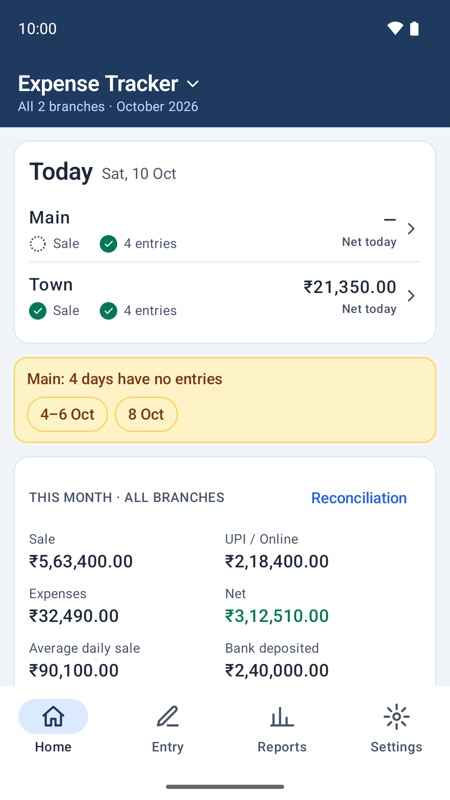
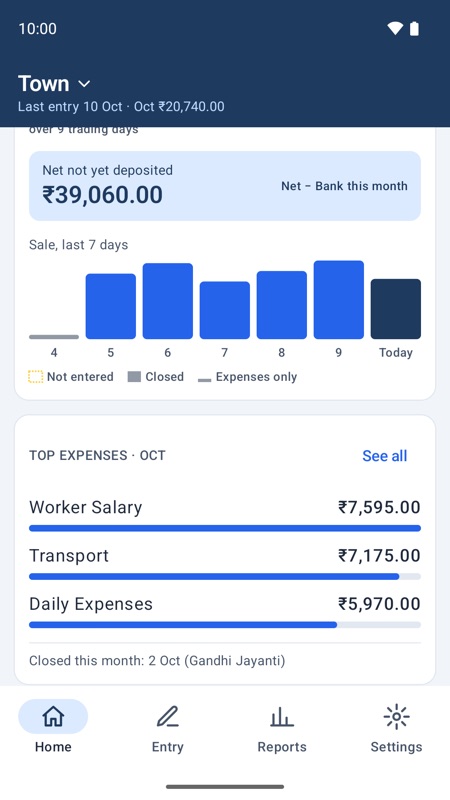
With two or more branches, Home opens on All branches: today's status for each branch, days that need attention, and this month's combined figures. Tap a branch for its own Home, with a 7-day sale chart and the top expense categories.
- Missing days: a past day with no Sale and no expenses is listed under the yellow notice. Tap the day to enter it, or mark it closed. To clear the notice for now, tap its ✕ and choose Hide until I reopen the app or Hide for today; with several branches, Hide for all branches today clears them all. A notice hidden for today comes back the next day.
- Closed days: if the business was shut, mark the day as closed (Holiday, Strike / Bandh or Other) from the missing-day notice or from Entry's ⋮ menu. Reopen day undoes it.
- Holidays: 26 January, 15 August and 2 October are built in; add others in Settings → Holidays. A holiday with nothing entered counts as closed.
- Average daily sale = the month's Sale ÷ trading days (days with a Sale or expenses). Closed days are left out. Last month's average is shown below for comparison.
- Net not yet deposited = this month's Net cash − Bank deposits.
6. Reports
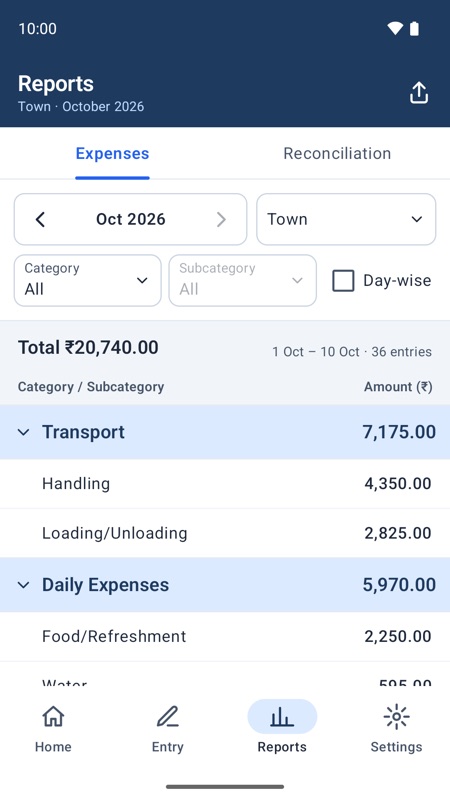
- Expenses — totals by category and subcategory. Filter by Category or Subcategory, or tick Day-wise to see each day. Tap a category band to fold it.
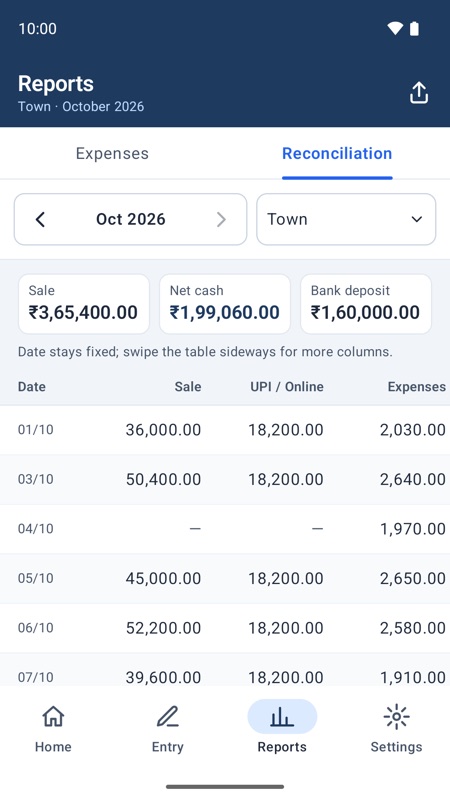
- Reconciliation — Sale, UPI, Expenses, Net cash and Bank deposit for each day, with totals and the average daily sale. The date column stays fixed; swipe the table sideways for more columns.
- Period and branches: use ‹ › to change month. Tap the branch box to open Period and branches: This month, Last month, a chosen month or a date range, and tick one, several or all branches for a combined report.
- Share: the share icon at the top right offers Share as PDF, Share as Excel and Print.
7. Branches, categories and business details
All in Settings. Settings under Branch settings apply to the branch chosen at the top of that section.
- Branches — add a branch (with the standard categories or a copy of another branch's), rename or delete. Deleting saves a safety snapshot first. If you set a PIN, these changes ask for it.
- Categories — add, rename, reorder and set default amounts. Changes apply when you tap Save; Discard cancels them all. A category that still has expenses cannot be deleted; remove a main category's subcategories first.
- Business details — the name and two address lines printed at the top of that branch's reports and saved in its backups.
8. Backup and restore
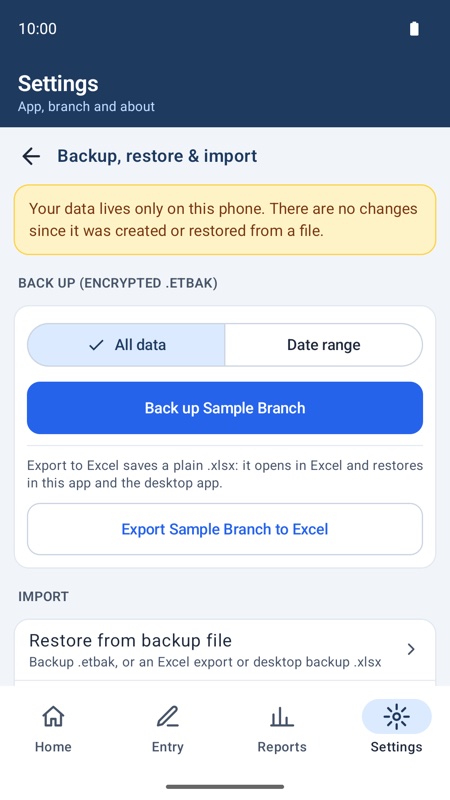
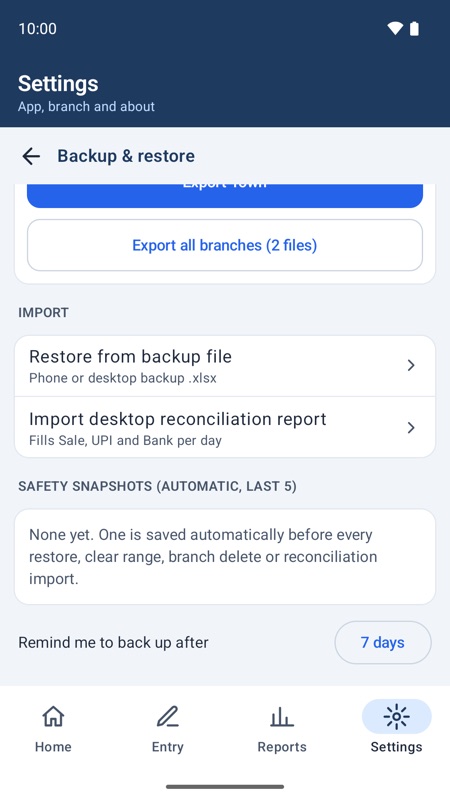
Back up
Settings → Backup, restore & import (the first section, Your data):
- Back up <branch> saves one encrypted .etbak file; you choose where (Downloads, Google Drive and so on). Backups are always free.
- Back up all branches saves one file per branch into a folder you pick.
- Date range backs up only part of the data. It is a partial copy and does not reset the backup reminder.
A .etbak file can be opened only by Expense Tracker, so it is safe to keep in Drive or send on WhatsApp. It also carries your trial and plan dates, so restoring it keeps them.
Export to Excel
Export <branch> to Excel saves a plain .xlsx file with all the branch's data. It opens in Excel and can be restored in this app or the desktop app. Export to Excel needs a plan (or the free trial) and stays open for 15 days after a plan ends.
Keep a copy off the phone — for example in Google Drive or on a computer. The app reminds you when changes have not been backed up for the number of days set in Remind me to back up after (7 by default).
Restore a backup
- Tap Restore from backup file and pick the file: a .etbak backup, an Excel export, or an older .xlsx or desktop backup. You can also tap the file in Files, Drive or WhatsApp and open it with Expense Tracker — choose Just once, not Always.
- Check the preview: the branch, date range and how many rows will be imported or skipped.
- Choose Replace <branch> (everything in that branch is replaced) or New branch, then confirm.
Safety snapshots
Before every restore, clear, branch delete or reconciliation import, the app saves an automatic snapshot on the phone (the last 5 are kept). If something went wrong, tap the snapshot to put the branch back as it was. Snapshots are not a backup: they are deleted with the app.
Moving to a new phone
- On the old phone: Back up all branches and copy the files to Google Drive or your computer.
- On the new phone: install the app, tap Restore or import a backup on the Business name step (or Restore a backup on the sample branch notice), then restore each branch file.
- If you have plans: Settings → Plan → Already bought? Check purchases (same Google account).
9. Using it with the desktop app
If you also use the Expense Tracker desktop app, the two exchange data through .xlsx files. The desktop app cannot open encrypted .etbak backups: use Export to Excel on the phone for the desktop.
- Enter data in one place only — the phone. A restore replaces the whole branch, so entries made on the desktop after your last phone export would be lost at the next restore.
- Phone → desktop: use Export to Excel on the phone and restore that file in the desktop app for reports and archive.
- Desktop → phone: restore a desktop backup as above. A desktop backup has no daily summaries, so the branch keeps its Sale, UPI and Bank figures.
- Desktop reconciliation report: Settings → Backup, restore & import → Import desktop reconciliation report fills Sale, UPI and Bank for the dates in the file. Existing notes are kept, and a safety snapshot is saved first.
10. Security
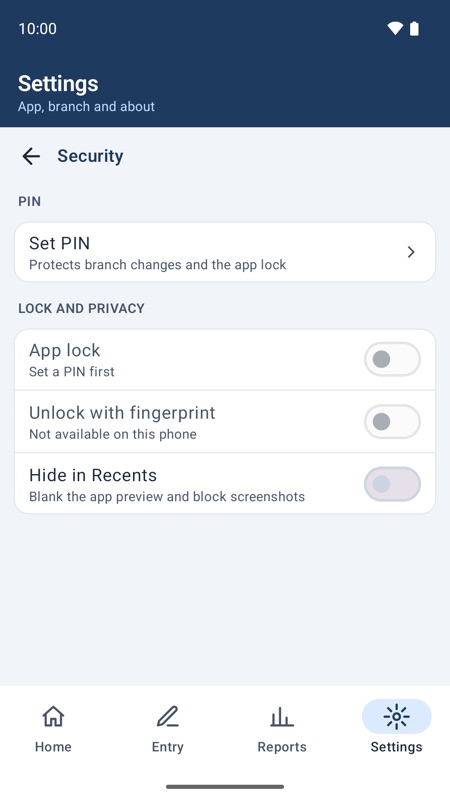
- PIN — 6 digits. It protects branch changes and the app lock. It stays on this phone and is never put in backup files. After 3 wrong attempts you must wait a short time before trying again.
- App lock — asks for the PIN each time the app opens. Set a PIN first.
- Unlock with fingerprint — on phones that support it; the PIN always works too.
- Hide in Recents — blanks the app preview in the recent-apps screen and blocks screenshots.
11. Privacy and deleting your data
- The app has no internet access, no account, no ads and no tracking. The developer never receives your data. Purchases go through the Google Play Store app.
- Your data is kept only on this phone, in Android's own backup to your Google account (if you have it switched on), and in the files you export.
- Delete everything: Settings → Delete all local data (type DELETE to confirm), or uninstall the app. This cannot be undone. It does not cancel or refund a plan.
Full details: Privacy Policy and Terms of Service.
12. Questions and help
A day shows as missing, but the business was closed.
Tap the day in the yellow notice and choose Mark as closed. It stops being flagged and is left out of the average daily sale.
The app will not let me save an expense.
The same subcategory already has an entry that day. Edit the existing entry, or add a note that makes the new one different.
I deleted something by mistake.
Tap Undo right away. For a cleared day or range, a restore or a deleted branch, use the safety snapshot in Backup, restore & import.
Tapping a backup file always opens the wrong app.
In the "Open with" chooser pick Expense Tracker and Just once. If you chose Always for another app, clear its defaults in Android Settings → Apps.
I paid, but the branch is still locked.
Open Settings → Plan and tap Already bought? Check purchases. If a paid place has no branch, give it to a branch with Use it here. A payment that is still pending starts the plan once Google Play confirms it.
Something is not working.
Settings → Share diagnostics creates a small text file with technical details (no business data). Send it with a short description to simhadrisystems@gmail.com.